WooCommerce does not track affiliates on its own, so starting an affiliate program means installing a plugin and then making a short list of decisions before you switch anything on: what the program is for, whether you want affiliates, customer referrals or both, how commission is calculated, who qualifies, how sales are attributed, how affiliates are paid, and which checks protect you from paying for orders that never stick. This guide takes those decisions in order. For each one it shows where the setting lives in Affiliate and Referral Program for WooCommerce, the plugin we build, and links the official documentation for the click-by-click part instead of repeating it.
If you have not chosen a plugin yet, our comparison of WooCommerce affiliate plugins covers the field, and if you are replacing AffiliateWP, the AffiliateWP alternatives comparison deals with pricing and migration. The decisions below apply whichever plugin you pick; the screenshots are from a demo store running the current version of ours.
Table of Contents
Before you switch anything on: the five decisions
- Purpose. New customers from creators and publishers, repeat orders from existing customers, or both. This decides whether you run an affiliate program, a refer-a-friend program, or the two side by side.
- Money. The commission structure and the rate you can afford on each product group, calculated from margin rather than copied from another store.
- Who gets in. Open registration with manual approval, automatic approval, or invitation only.
- Attribution. How long a click counts, what happens when two affiliates touch the same customer, and whether coupon codes credit an affiliate without a click.
- Payment. The method, the minimum, and how long you hold a commission before it is paid.
Install the plugin first so you can see each setting as you decide. The getting started guide covers installation, the pages the plugin creates and the first-run settings; everything under WooCommerce → Affiliate & Referral follows the order of this article.
Step 1: Define what the program is for
Write the goal as a number you can read off a report: orders from new customers per month, or revenue through affiliate links as a share of total revenue, or the number of active affiliates who made at least one sale. The goal decides the rest. A program built to reach new audiences pays well on a first order and recruits publishers and creators; a program built for repeat business rewards existing customers with store credit and needs almost no recruiting. Programs that try to do both with one reward usually overpay one group and underpay the other, which is why the next decision matters.
Step 2: Affiliate program, customer referral program, or both
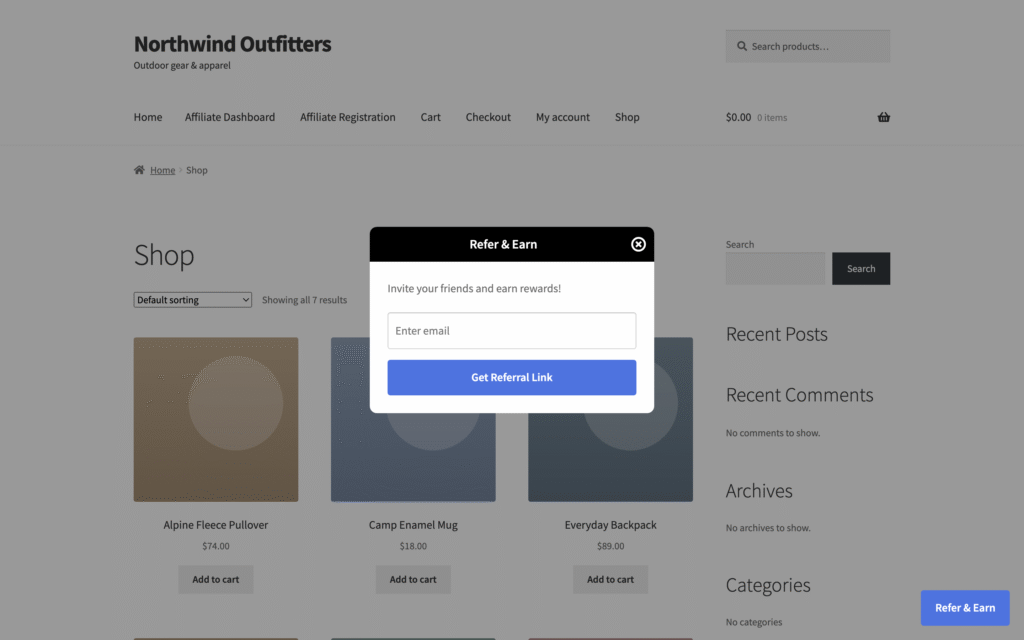
An affiliate promotes your store to an audience and expects a cash commission, a dashboard and marketing material. A customer refers a friend once or twice and expects a small reward with no paperwork. In Affiliate and Referral Program for WooCommerce these are two separate modules with separate settings and separate wallets. The affiliate module runs from the registration form and dashboard described below. The customer module adds a floating Refer & Earn button or a shortcode to the store; the customer enters an email address, gets a link, and when a friend orders, the referrer receives store credit based on the order total while the friend gets a cart discount. Approval can be automatic once the order is processing or completed. The refer-a-friend setup page shows the rewards settings.
Run both when you have both audiences. Keep the rewards different: cash or wallet balance for affiliates, store credit for customers. Because the modules are separate, a customer who later applies as an affiliate is handled by the affiliate module and its approval rules, not by the referral widget. Our comparison of affiliate programs and referral programs works through the choice in more depth.
Step 3: Choose the commission structure and set the rates
Start from the base the plugin uses: commission is calculated on each line’s total after discounts, excluding tax and shipping. An order with a $74 pullover and an $18 mug, a 10% coupon, $6 shipping and $7.36 tax has a commission base of $82.80; at a 10% rate the affiliate earns $8.28. Set the rate per product group from margin. A product with a 40% gross margin can carry 10% comfortably; a product with a 15% margin cannot. Our guide to affiliate commission structures and how to set rates works the margin arithmetic through structure by structure.
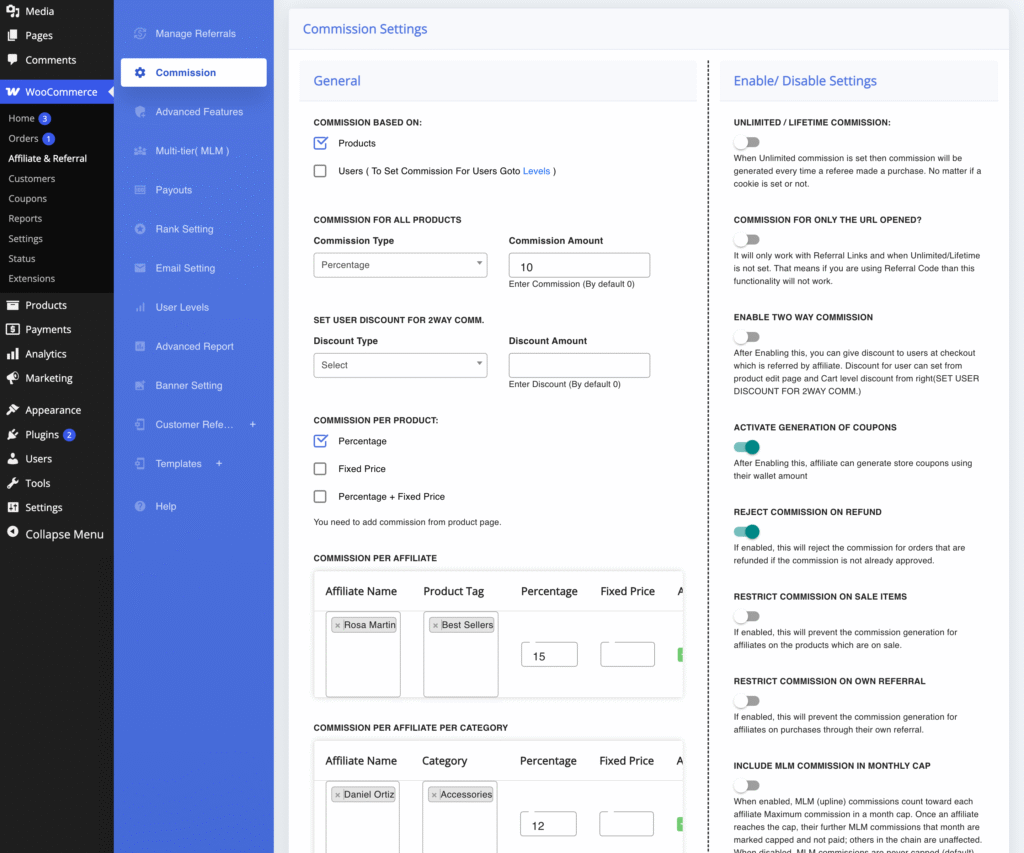
The structures available, from simplest to most specific, are a store-wide percentage or fixed amount; a rate per product or per category; a rate per affiliate, optionally limited to a product tag or a category; and a date-limited promotion on a category. When several apply, the most specific wins: affiliate rules first, then the dated category promotion, then product, then category, then the store-wide rate. Set the store-wide rate under WooCommerce → Affiliate & Referral → Commission and the overrides on the same screen; per-product rates are entered on the product itself. The commission rules guide shows each field.
Two further options are easy to confuse, so keep them apart. Performance-based direct commission, set under User Levels, changes an affiliate’s own rate when they reach a target: for example Starter at 10%, Advanced at 12% after five referrals, Partner at 15% after $1,000 in sales. While that mode is on it replaces the product and category rules, and it pays nothing on anyone else’s sales. Multi-tier (MLM) is a different thing: an affiliate earns a per-level rate on sales made by affiliates they recruited, to a depth you set, with rates that do not compound. It is off by default and belongs in a program designed around recruiting; our guide to WooCommerce MLM plugins explains the plan types before you decide.
Step 4: Decide who qualifies and how you approve them
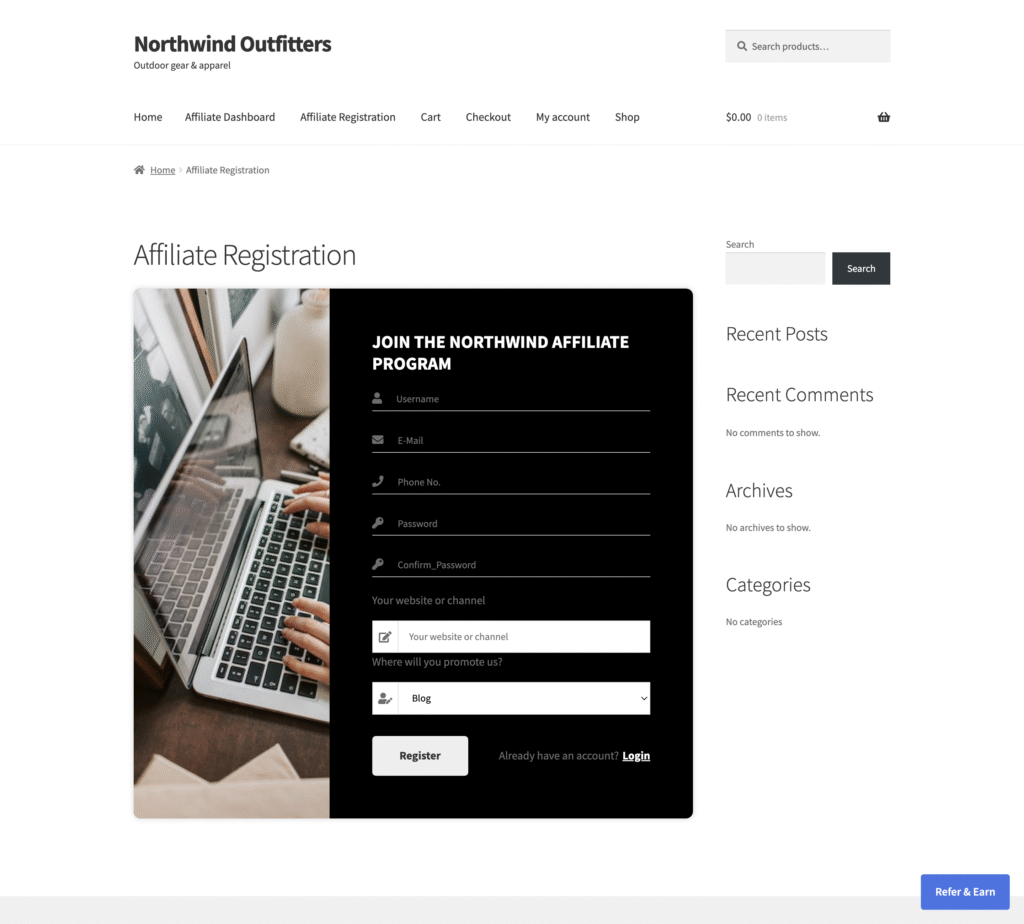
Open registration brings volume and noise; manual approval keeps the noise out at the cost of a daily check. The plugin creates a registration page from its shortcode, with four templates and custom fields you define, so ask for the information you will judge on: the website or channel, the audience, and where they intend to promote. Approval is a setting: approve each affiliate by hand from WooCommerce → Affiliate & Referral → Affiliates, or approve automatically. Two shortcuts exist for stores that want customers as affiliates: a “Become an affiliate” option for logged-in customers, and an option that registers every buyer as an affiliate automatically, which suits a refer-a-friend style program more than a publisher program. Field setup is on the registration form page.
Step 5: Decide how sales are attributed
Four settings decide who gets credit. The cookie duration is how long a click counts; the default is 30 days, and the last click before the order wins. Lifetime attribution ties a customer to the affiliate who first referred them so later orders keep paying, first-click or last-click as you choose; it applies to logged-in customers, so it suits stores where customers have accounts. Coupon attribution credits the affiliate whose assigned coupon was used, with no click required, and the coupon takes precedence over a link cookie. And the plugin records each visit with the device, browser, platform and IP address, de-duplicating repeat visits within an hour, so you can check a disputed referral later.
Tracking runs in the visitor’s browser. Before launch, place a test order through a referral link with your caching plugin and any cookie-consent tool active, and confirm the referral appears under Manage Referrals. The tracking and attribution page lists the settings.
Step 6: Give affiliates links, coupons and banners
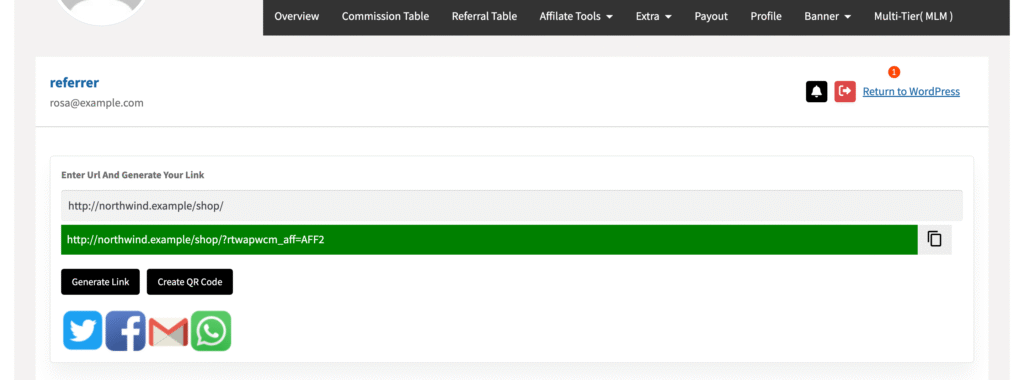
Affiliates promote what is easy to share. In the dashboard’s Affiliate Tools tab they paste any store URL, including a single product page, and get their referral link, an optional QR code, and share buttons for X, Facebook, WhatsApp and email. For creators who talk rather than link, assign a WooCommerce coupon to the affiliate; the code alone credits the sale. Add banners in the standard sizes from the Banner Setting screen so affiliates can copy the embed code, and let them generate product creatives from the same tab. The coupon tracking page covers the coupon setup.
Step 7: Choose the payout method and cadence
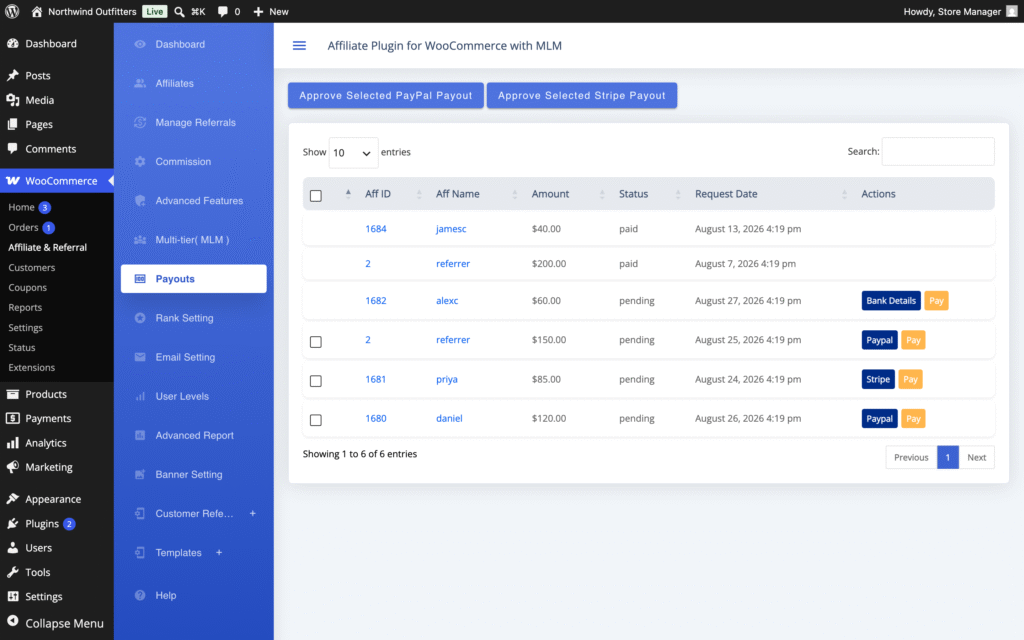
Decide three things: the method, the minimum withdrawal, and the holding period. Affiliates request a withdrawal from their dashboard once their balance passes the minimum you set. Under WooCommerce → Affiliate & Referral → Payouts you select the requests and click Approve Selected PayPal Payout, which pays every selected affiliate in one batch through the PayPal Payouts API using your own PayPal account, or Approve Selected Stripe Payout, which needs the free Stripe add-on because the Marketplace does not allow the Stripe SDK in the main package. Bank transfers are recorded by hand against the request. Affiliates can also convert wallet balance into a single-use store coupon, which keeps the commission in your store; customer referrers are paid in store credit by default. Pick a cadence you can keep, weekly or monthly, and publish it. The paying affiliates page covers PayPal, Stripe and bank payouts. Which method suits which store, with the fees and the tax paperwork, is compared in how to pay affiliates in WooCommerce.
Step 8: Recurring and lifetime commissions, if they fit
If you sell subscriptions through WooCommerce Subscriptions, decide whether renewals pay commission; the plugin can pay on each renewal, which makes the program attractive to publishers and expensive if the rate is set for a one-off sale. Lifetime commission, the attribution option from Step 5, is the equivalent for repeat one-off purchases. Both are worth offering to a small number of proven affiliates rather than to everyone, and both are settings you can switch on later.
Step 9: Review and fraud controls
A commission is created when the order is placed and paid out only after you approve it, so the holding period is your main protection: approve commissions after your refund window closes, not before. The schemes stores actually meet, and the control that stops each one, are in our guide to affiliate fraud in WooCommerce. Set the rest before launch:
- Restrict commission on own referral stops an affiliate earning on their own orders. It is off by default; switch it on.
- Reject commission on refund rejects a pending commission when the order is refunded. A commission you have already approved is not reversed automatically, which is the second reason to approve after the refund window.
- Coupon ownership is enforced: a coupon assigned to one affiliate cannot be used to credit another.
- Manual approval of referrals under Manage Referrals, with the visit log from Step 5 to check device, browser and IP on anything unusual, and a reason recorded when you reject.
Step 10: Launch
- Put the registration page in the footer and, if affiliates matter to you, in the main menu; a program nobody can find gets no applicants. Publishing the page is not the same as recruiting, though — how to recruit affiliates covers where partners come from and how to approach them.
- Publish the terms: rates, holding period, payout method and minimum, what is not allowed, and how disputes are handled. Link them from the registration page.
- Check the five email templates the plugin sends, for signup, becoming an affiliate, withdrawal requests, commissions and multi-tier commissions, and switch off any you do not want.
- Upload banners and product images before the first affiliate logs in, so the dashboard is not empty.
- Place one test order through a link and one through a coupon, approve the commissions, and run one payout, before you tell anyone.
- Announce it to customers first if you run the refer-a-friend module, then to the publishers and creators you have already listed.
Step 11: Measure and improve
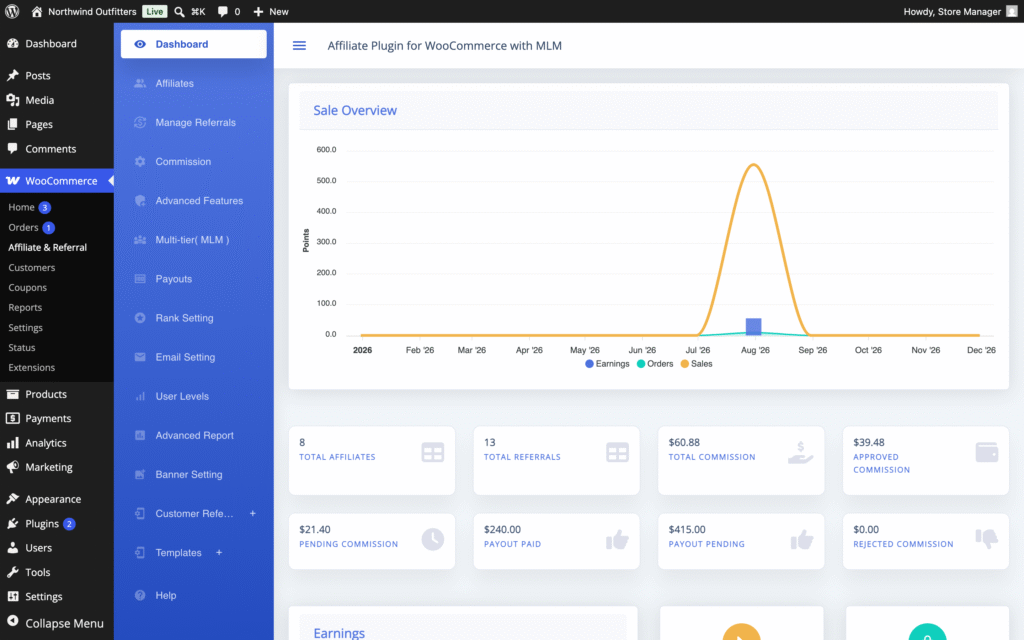
The dashboard under WooCommerce → Affiliate & Referral shows totals for affiliates, referrals, pending and approved commission, and payouts paid and pending, with a sales and earnings chart. The Advanced Report breaks sales, visits, orders and revenue down by month and by device, and the referral and affiliate tables export to CSV. Compare the numbers with the goal from Step 1 once a month. If applications are low, the registration page is hard to find or the rate is uncompetitive; if clicks are high and orders low, the landing pages or the discount are the problem; if a few affiliates make all the sales, add User Levels or a performance bonus for them rather than raising the rate for everyone. For the full list of settings and reports, the complete RedefiningTheWeb reference for the plugin sits alongside the official documentation.
Ready to set this up on your store?
Affiliate and Referral Program for WooCommerce includes the affiliate program, the customer refer-a-friend program and multi-tier commissions, with PayPal batch payouts and the wallet built in. It is sold on the WooCommerce Marketplace for $96 a year.
Related guides:
Frequently asked questions
How much commission should I pay affiliates?
Work back from margin. Commission is calculated on the line total after discounts and before tax and shipping, so a 10% rate on a product with a 40% gross margin leaves 30 points; a product with a 15% margin cannot carry the same rate. Start with one store-wide rate, add per-category or per-affiliate overrides where margins differ, and raise rates through User Levels for the affiliates who deliver.
How do I pay affiliates in WooCommerce?
With Affiliate and Referral Program for WooCommerce, affiliates request a withdrawal from their dashboard. Under WooCommerce → Affiliate & Referral → Payouts you select the requests and click Approve Selected PayPal Payout to pay them in one batch through the PayPal Payouts API, or Approve Selected Stripe Payout with the free Stripe add-on installed. Bank transfers are recorded by hand, and affiliates can convert wallet balance into a store coupon instead.
Can an affiliate be credited without a link?
Yes. Assign a WooCommerce coupon to the affiliate. When a customer uses that code, the sale is credited to the affiliate whether or not anyone clicked a link, and the coupon takes precedence over a link cookie. This suits creators who mention a code on video, audio or in print.
Do I need multi-tier (MLM) commissions to start?
No. Multi-tier commission is off until you switch it on under Multi-tier( MLM ), and most programs never need it. Start with direct commissions and add network levels only if recruiting affiliates is part of the program’s design. Performance-based direct commission (User Levels) is the tool for rewarding individual results, and it is separate from MLM.