The commission structure decides what an affiliate program costs and what it attracts. The short version for a WooCommerce store: set one store-wide percentage you can afford on your thinnest margin, override it per product or category where margins differ, give your best affiliates their own rate, run a dated promotion when you launch something, and add lifetime, recurring or multi-tier commission only when the economics below say so. Eight affiliate commission structures are compared here on what they pay, who they suit and what they cost, with the arithmetic worked on real numbers.
We build Affiliate and Referral Program for WooCommerce, so the examples use its basis and its settings; the reasoning applies to any program. This is the rates step of the step-by-step guide to starting an affiliate program, expanded.
Table of Contents
Start with the commission base
Before choosing a structure, know what the rate is applied to. In our plugin commission is calculated per order line, on the product’s line total after discounts and excluding tax and shipping. A rule pays a percentage of that base or a fixed amount. Because the base is the discounted total, a coupon the customer uses reduces the commission with it: affiliates are paid on what the store actually earned, and an order with three products can match three different rules.
Two consequences follow for every structure below. A percentage follows your prices and discounts automatically, so it is the default for a catalogue that changes. A fixed amount is easier to promote and easier to budget for products with a stable price, and it is the natural choice where percentages would round to cents.
The affiliate commission structures compared
| Structure | What it pays | Best for | Cost risk | Where it is set in Affiliate and Referral Program for WooCommerce |
|---|---|---|---|---|
| Flat store-wide rate | One percentage or fixed amount on every product | Every program as the fallback; catalogues with similar margins | Overpays on thin-margin lines unless they are overridden or excluded | Commission → Commission for All Products |
| Per-product and per-category rates | A rate on one product or one category; 0 on a product means it pays nothing | Mixed margins; loss leaders; gift cards | Low; the risk is forgetting a product that inherits the fallback | Commission per Product mode on the Commission screen + Add Commission on the product; Commission per Category |
| Per-affiliate rates | A named affiliate’s own rate, optionally limited to a product tag or a category | Your top partners; agencies; negotiated deals | Low and visible: one row per deal | Commission per Affiliate; Commission per Affiliate per Category |
| Dated promotion | A higher category rate between a start and an end date | Launches, seasons, clearing stock | Time-boxed by design | Special offers per Category |
| Performance-based (affiliate levels) | The affiliate’s own rate rises as they hit referral or sales targets; replaces the product rules | Programs that want a ladder affiliates can climb | The top rate applies to every product, so it must fit the thinnest margin | Commission Based On: Users, then User Levels |
| Lifetime commission | The affiliate who introduced a customer earns on all of that customer’s later orders | Consumables, refills, repeat purchases | Recurs indefinitely; pair with a lower rate and the monthly cap | Commission → Unlimited / Lifetime Commission |
| Recurring commission | Every paid renewal of a referred subscription earns commission again | Subscription products (needs WooCommerce Subscriptions) | Recurs while the subscription lives; keep the rate on subscription products lower | Advanced Features → General → Generate commission for woocommerce subscription renewal |
| Multi-tier (MLM) | Affiliates who recruit affiliates earn a per-level rate on their recruits’ sales, in addition to the seller’s commission | Programs built on recruitment | Adds a second cost on every sale; base it on the seller’s commission, not the product price, unless recruitment is the model | Multi-tier( MLM ) screen; per-level rate rows |
| Bonuses and ranks | One-off amounts for signups, clicks, shares, sales milestones and rank promotions | Any structure; cheaper than a permanent rate rise | Fixed and predictable, but not covered by the monthly cap | Advanced Features → Bonus; Rank Setting |
Work back from margin: the rate you can afford
There is no universal “good” affiliate rate; there is only the rate your margin carries. Take one product and write down what is left after the costs the sale itself creates. Suppose a $50 product with $22 cost of goods, $1.50 in payment fees and $4 of fulfilment, sold through an affiliate link with a 10% coupon. The commission base is the discounted line, $45, and the contribution before commission is $45 − $22 − $1.50 − $4 = $17.50. The table shows what each rate leaves you on that line.
| Rate on the $45 base | Commission | Contribution left | Share of contribution given to the affiliate |
|---|---|---|---|
| 5% | $2.25 | $15.25 | 13% |
| 10% | $4.50 | $13.00 | 26% |
| 15% | $6.75 | $10.75 | 39% |
| 20% | $9.00 | $8.50 | 51% |
| 25% | $11.25 | $6.25 | 64% |
Decide the share first, then derive the rate: affordable rate = contribution per line × the share you will give ÷ the commission base. Giving a third of contribution on this product means $5.83, which is 13% of the $45 base; round to 12% and keep the extra point for a promotion.
Three refinements make the number honest. Use the discounted base, not the list price, because that is what the plugin pays on and what affiliate-sent orders look like. Compare the rate with what you pay for the same order through advertising; an affiliate sale that costs less than your paid-acquisition cost per order is a good trade even at a high share. And treat the rate as a per-product decision: the store-wide number is only the fallback for products you have not looked at yet.
Two costs sit outside the rate. If you enable two-way commission, the referred customer’s discount is funded by the store and does not reduce the affiliate’s commission, so budget for both. And the monthly ceiling, Maximum commission to an Affiliate in a month on the Commission screen, is your safety valve for every structure below: a commission that would cross it is reduced to fit and the excess is recorded as capped rather than paid.
Flat store-wide rate
A single rate is what every program starts with and what most keep as the fallback. It is easy to publish, easy for affiliates to compare, and easy to defend. Its weakness is that a catalogue rarely has one margin: the rate that is generous on accessories is ruinous on the product you sell near cost. Set the flat rate for the product margin you can least afford to overpay on, then raise it where margins allow through the rules below, rather than setting it for your best margin and hoping nobody promotes the worst one.
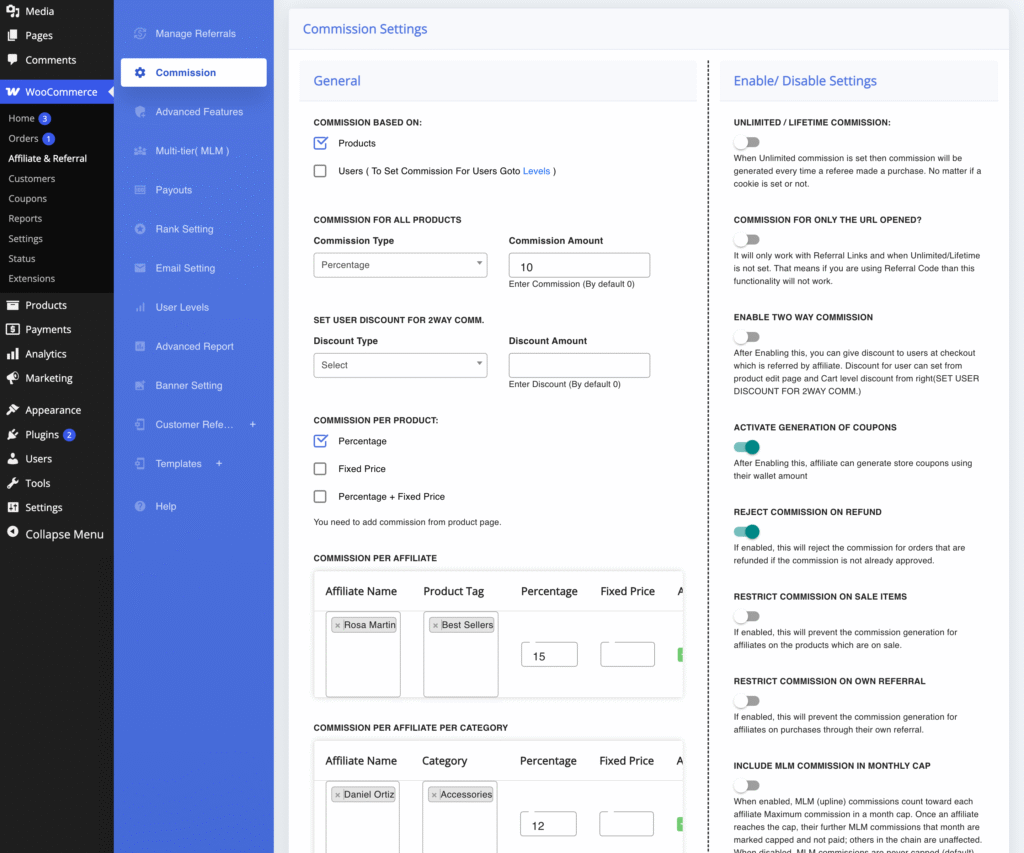
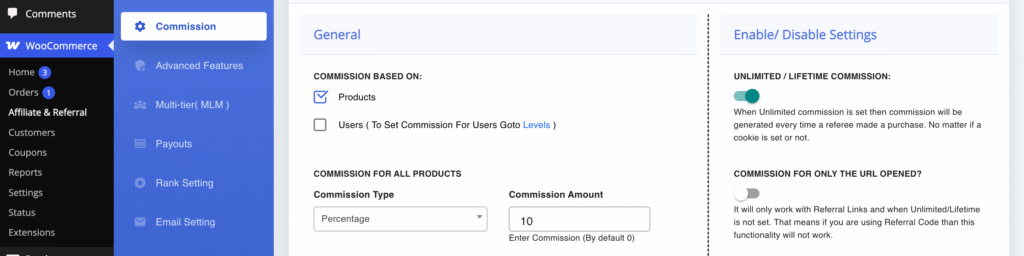
In our plugin the fallback lives under WooCommerce → Affiliate & Referral → Commission as Commission for All Products, with a Commission Type of Percentage or Fixed and a Commission Amount. Every affiliate earns it on every product unless a more specific rule matches. Everything else on that screen is an exception to this one number, which is why the commission rules reference spends most of its length on which rule wins.
Per-product and per-category rates
Product and category rates are how the flat rate stops being a compromise. The pattern that works: the fallback covers the middle of the catalogue, high-margin categories get a higher rate that affiliates notice, and the handful of products you sell near cost get a rate of their own, including zero.
A zero is a deliberate instruction, not an empty field: the product pays nothing and does not fall back to a category or store-wide rate, which is what you want for gift cards, loss leaders and clearance lines. A product rate always beats a category rate, and a product that sits in several categories is matched on one of them, so do not give two categories that share products conflicting rates.
Before entering amounts, choose how product rates are expressed under Commission per Product on the Commission screen: Percentage, Fixed Price, or Percentage + Fixed Price, which adds the two. That choice decides which fields appear in the Add Commission box on each product and in the editable commission column on the Products list. Category rates are rows under Commission per Category. Rates are set at product level and apply to every variation of that product, so variations that need different rates must be separate products. The per-product and per-category guide walks through each screen.

Per-affiliate rates and dated promotions
Most of a program’s sales come from a few affiliates, and those few will ask for more. A per-affiliate rate is the cleanest answer: one row naming the affiliate and their rate, optionally limited to products carrying a chosen product tag, or a per-affiliate-per-category row for one affiliate’s rate on one category. Named-affiliate rules are the strongest on the screen; whatever else matches, they win, so a partner deal never leaks into the general program and the general program never overrides the deal. Price these deals from the margin table like any other rate, and write them into that affiliate’s agreement, not the public terms.
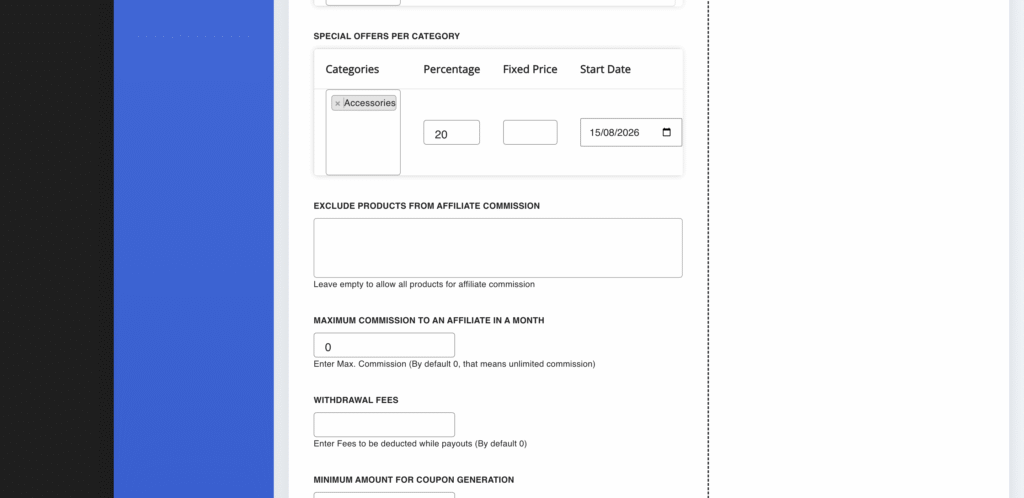
For a launch or a season, a dated promotion beats editing rates by hand twice. Special offers per Category takes the categories, a higher rate and a Start Date and End Date; inside the window it outranks product and category rates, only named-affiliate rules beat it, and when the window ends orders fall back to the normal rules on their own. The full precedence ladder, top to bottom, is: per affiliate (optionally by tag), per affiliate per category, dated special offer per category, per product, per category, store-wide. Rules do not stack; the first match pays, so a per-affiliate 15% replaces a product’s 5% rather than adding to it.
Performance-based rates: affiliate levels
Performance-based direct commission replaces the product ladder with a ladder of affiliates. Each affiliate holds a level, each level pays its own rate, and the rate rises as the affiliate hits targets, so the same sale pays a proven affiliate more than a newcomer.
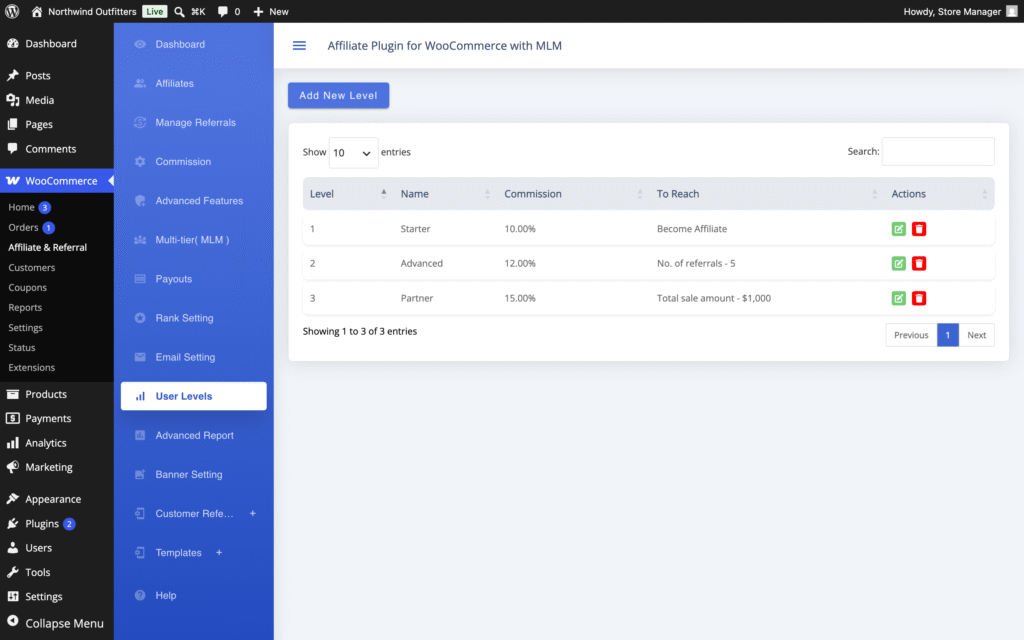
In our plugin this is the second of two direct commission modes: Commission Based On switched from Products to Users, and the levels built on the User Levels screen with a Level Name, a Commission Type and Commission Amount, and a To Reach Criteria of Become Affiliate for the entry level, No. of Referrals or Total Sale Amount for the others. The ladder in the documentation is typical: Starter pays 10% on joining, Advanced 12% after 5 approved referrals, Partner 15% after $1,000 in referred sales. Levels are re-evaluated whenever one of the affiliate’s referrals is approved, and there is no automatic demotion.
Two things decide whether this structure fits. First, it is either/or: in performance-based mode the product, category and per-affiliate rules are set aside and the level is the only rate, though products excluded from commission and the sale-item restriction still apply. That means the top level’s rate applies to every product an affiliate sells, so it must fit your thinnest margin or those products must be excluded. Second, the cost is on all future sales, not just the next one: an affiliate sending $3,000 of base a month costs $300 at Starter, $360 at Advanced and $450 at Partner, and stays at Partner.
Where that extra $150 a month buys loyalty from someone who would otherwise move to a competitor’s program, it is well spent; where affiliates are one-off reviewers, a milestone bonus (below) is cheaper. One thing this is not: affiliate performance levels are not multi-tier (MLM) levels. A performance level changes the affiliate’s own direct rate on their own referred orders; a network level is a rate paid to a recruit’s sponsor and never changes the seller’s rate. The affiliate levels guide covers the switch and the ladder.
Lifetime commission
Lifetime commission pays the affiliate who introduced a customer on that customer’s later orders, not only the first. It is the structure that turns affiliates into recruiters of customers rather than senders of clicks, and it suits stores with repeat purchases: consumables, refills, anything bought monthly. The arithmetic is what makes it generous. A customer who orders $45 of base every month for a year pays a one-off 15% affiliate $6.75 once; a lifetime 8% pays the same affiliate $3.60 twelve times, $43.20, on $540 of revenue, including orders your own emails brought back.
That is why stores that enable it usually pair it with a lower rate than their one-off rate and lean on the monthly ceiling, and why it should be decided with your repeat-purchase data in hand: if few customers reorder, lifetime commission costs little and recruits well; if most do, it is a permanent share of your best customers.
The mechanics matter for the terms you write. In our plugin the pairing is created for a logged-in customer who arrives through an affiliate’s referral link, at the click or at checkout after signing in; the first affiliate to bring a customer keeps them, a later link from someone else does not transfer them, and no cookie is needed afterwards.
A guest checkout is never paired and pays the ordinary one-off commission, so a lifetime-based program needs easy account creation. The pairing is not retroactive, referral codes do not create it, and the monthly ceiling still applies. It is one switch, Unlimited / Lifetime Commission on the Commission screen; the rates themselves still come from your rules. The lifetime commission guide has the details.
Recurring commission on subscriptions
Recurring commission follows one subscription rather than one customer: every paid renewal of a subscription an affiliate referred creates a fresh commission for that affiliate. It needs WooCommerce Subscriptions, because the plugin listens for the renewal payment that extension reports. Renewals pay only when the original order earned a commission, they are priced by the same rules as any sale, and the monthly ceiling still applies. When the subscription is cancelled, the commissions stop; commissions already approved stay in the affiliate’s wallet.
Price it against the subscription’s lifetime, not its first payment. Take a $30-a-month subscription with a 60% gross margin that customers keep for ten months on average, so $300 of revenue and $180 of contribution. A 20% commission on the first order only costs $6; a 10% recurring commission costs $3 ten times, $30, one sixth of contribution.
If the affiliate really drove the subscription, both are affordable, and the recurring version aligns the affiliate with retention: they earn while the customer stays. Because renewals recur, set a lower rate on subscription products themselves (a product rate applies to the first order and every renewal) and keep them out of your dated promotions. Recurring and lifetime can run together on a store that sells subscriptions beside ordinary products; the recurring commission guide explains why a renewal sometimes pays nothing.

Multi-tier (MLM) commission
What a network adds to the cost of a sale
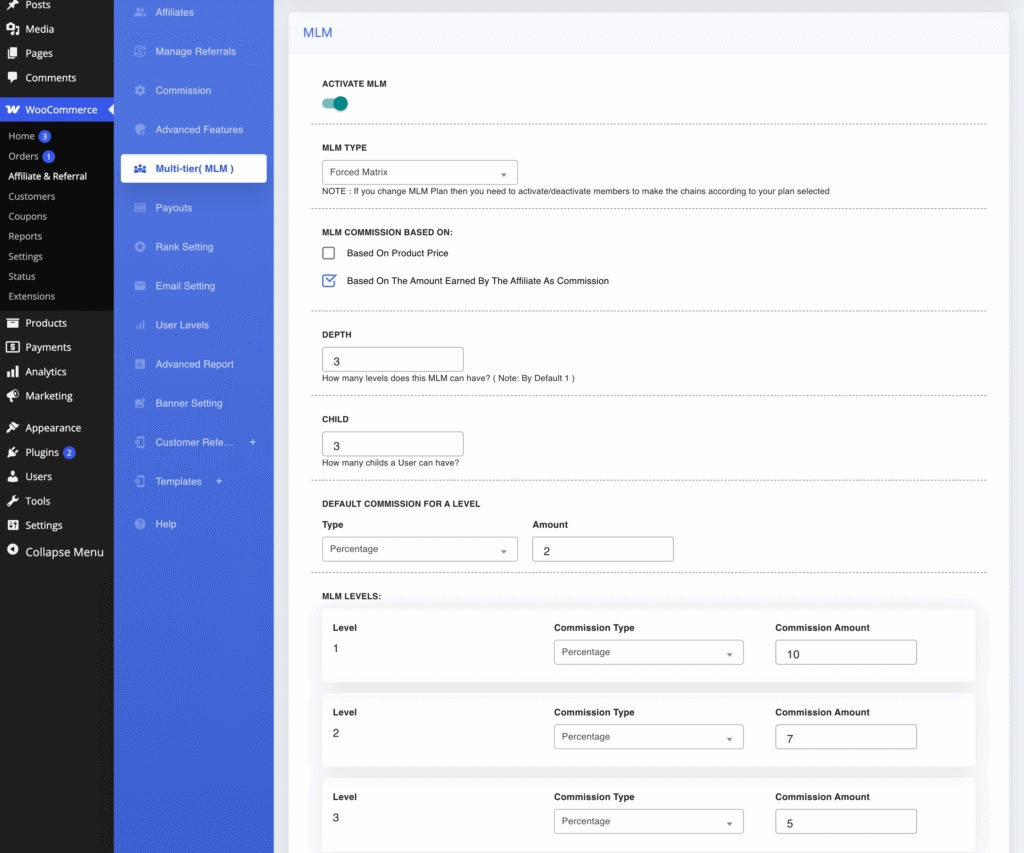
Multi-tier commission lets affiliates recruit affiliates: when a recruit makes a sale, the people above them in the network also earn, at a rate you set per network level, in addition to the seller’s own commission. Nothing is taken from the seller and nothing compounds; each level is paid by the store at its own rate. The cost question is what the per-level rates are based on. Our plugin offers two bases: the amount earned by the selling affiliate as commission (the default) or the product price.
With the default and rates of 15% for level 1 and 10% for level 2, a seller who just earned $20 puts $3.00 with their recruiter and $2.00 with the recruiter’s recruiter: $25 of commission on a sale that would have cost $20, a quarter more. Base the same two levels on a $200 product price at 5% and 3% and the network adds $16 to the $20, four fifths more. Use the product-price base only if recruitment is the model of the program and the margin was built for it.
The settings that shape the cost
On the Multi-tier( MLM ) screen, Depth sets how many levels above a sale can earn from it and each level gets its own rate row; MLM Type and Child set the plan’s shape and how many active recruits a member needs before they earn from the chain (none under the Unlimited plan); MLM Commission Based On is the base choice above. Network earnings are not counted by the monthly ceiling unless you enable Include MLM commission in monthly cap.
Whether a network suits a store at all, and which plan type to choose, is the subject of the multi-tier commissions guide; the click-paths are in the MLM setup guide and the plan types comparison. Keep the two direct modes above separate from this: an affiliate can hold a performance level and sit in a network at the same time, and neither changes the other.
Bonuses and ranks on top of any structure
A one-off reward is often the cheaper way to get the behaviour a rate rise is meant to buy. A performance bonus pays a fixed amount when an affiliate’s referred sales pass a threshold, such as $25 at $500 and $60 at $1,000, and costs $85 once; raising that affiliate’s rate by two points costs $20 on every further $1,000 forever. Our plugin’s Bonus tab under Advanced Features also holds a signup bonus for referred registrations, a small pay-per-click amount that counts a visitor’s first click only, and a sharing bonus with daily, weekly or monthly limits.
Ranks, on the Rank Setting screen, are a badge plus a one-off bonus for a milestone such as personally recruiting a number of affiliates; they do not change the per-sale rate, and an affiliate is promoted when they next open their dashboard. Every bonus lands as a pending record you approve like a commission, and bonuses are not covered by the monthly ceiling, so size them accordingly. The bonuses guide lists each type.
Putting a rate card together
Here is how the structures combine for a store with a 40% gross margin across most of its range, a high-margin accessories category, a subscription refill and one partner who sends a third of the sales.
- Store-wide 10% as the fallback, derived from the thinnest mainstream margin with the margin table.
- Accessories 15% as a category rate, because the margin carries it and affiliates promote what pays.
- Gift cards and clearance 0 as product rates, so they never pay and never fall back.
- Refill subscription 8% as a product rate with renewal commission on, priced against the subscription’s lifetime.
- The partner at 15% on everything as a per-affiliate rule, in their own agreement.
- A 20% launch promotion on the new category for two weeks as a dated special offer.
- A $60 bonus at $1,000 of referred sales instead of a general rate rise.
- A monthly ceiling per affiliate, lifetime commission off until repeat-purchase data justifies it, and no network until there are affiliates who want to recruit.
Publish the store-wide rate, the category rates and the promotion in the affiliate terms; keep partner deals in their agreements. Change rates rarely, announce them ahead, and never lower a rate on sales already made: approved commissions stay in the wallet, and an affiliate who sees a rate cut applied backwards leaves.
How commission structures work in Affiliate and Referral Program for WooCommerce
Affiliate and Referral Program for WooCommerce runs every structure in this article from the screens named above. Direct commission has two modes chosen once under Commission Based On: Products, where the store-wide, per-category, per-product, per-affiliate and dated rules price each order line by the most specific match, or Users, where the affiliate’s performance level is the rate. Lifetime commission is a switch on the same Commission screen, renewal commission a switch under Advanced Features, and the multi-tier network its own screen with per-level rates and a plan type.
The Commission screen also holds the monthly ceiling, the product exclusion list, Restrict commission on sale items, Restrict commission on own referral (off by default and worth turning on), and Reject commission on refund, which rejects a still-pending commission when the order is refunded; an already approved commission is not reversed, so review refunds on recently approved orders yourself. Every commission is created pending and approved on Manage Referrals, by hand or automatically by order status through Affiliate Referral Automation, and approved amounts land in the affiliate’s wallet for the payout methods compared in how to pay affiliates in WooCommerce. Every setting is also listed in the complete RedefiningTheWeb reference.
Want every commission structure in this guide from one plugin?
Affiliate and Referral Program for WooCommerce prices sales from store-wide, per-product, per-category, per-affiliate and dated promotional rules or from affiliate performance levels, adds lifetime, subscription-renewal and multi-tier commission, bonuses and ranks, and caps what any affiliate earns in a month. It is sold on the WooCommerce Marketplace for $96 a year.
Related guides:
Frequently asked questions
What is a good affiliate commission rate for a WooCommerce store?
There is no universal number, only the rate your margin carries. For one product, take the discounted line total and subtract cost of goods, payment fees and fulfilment to get the contribution before commission; decide what share of that you will give the affiliate; and express the result as a percentage of the discounted line total, which is what Affiliate and Referral Program for WooCommerce pays on. Set that store-wide, then raise or lower it per product, category or affiliate where margins differ.
Is affiliate commission calculated on the order total or after discounts?
Per order line, on the line total after discounts and excluding tax and shipping. A coupon the customer uses reduces the commission with it, and an order with three products can match three different rules, so the affiliate is paid on what the store actually earned.
Are affiliate levels the same as MLM levels?
No. An affiliate performance level sets the rate an affiliate earns on their own referred orders and rises with their referrals or sales; it is a direct commission mode. A multi-tier (MLM) level is a position in a recruitment network and sets what a recruit’s sponsor earns from the recruit’s sales, a separate commission that never changes the seller’s rate. An affiliate can hold a performance level and sit in a network at the same time.
Can different affiliates earn different rates?
Yes, two ways. In product-based mode a Commission per Affiliate rule gives a named affiliate their own rate, optionally limited to a product tag or a category, and it outranks every product and category rule. In performance-based mode every affiliate’s rate follows the level they have reached, so rates rise automatically with results.